Before you start: you need Windows, MT4 or MT5 installed, and an active Yearly (or Lifetime) Forexero membership. The download and your license live in your member dashboard. The license activates automatically with your membership: no keys to enter.
Download the copier from your dashboard
Log in at app.forexero.com and open the Copier section. Your download and your license live there, and the license activates automatically with your membership: there are no keys to enter anywhere. Download the installer zip and unzip it.
Mac or laptop users: the copier runs on Windows. If you are on macOS, or you simply do not want to leave a computer running, run it on a VPS instead and it will copy for you 24/7. Message the team and we will point you to a suitable VPS setup.
Install it (and get past the Windows warning)
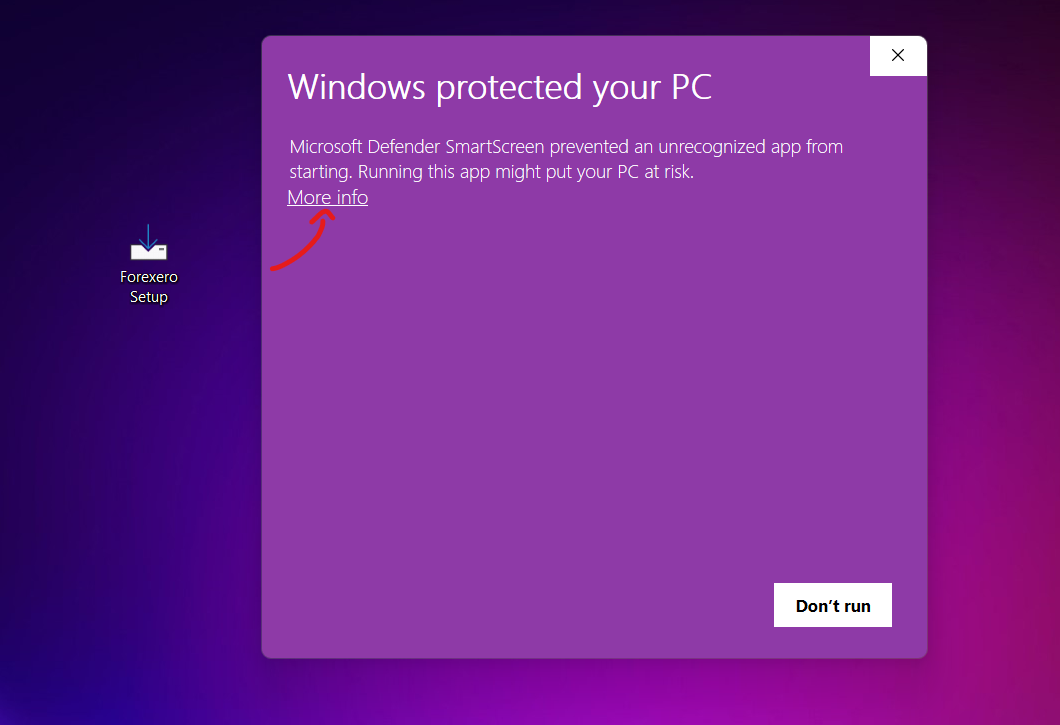
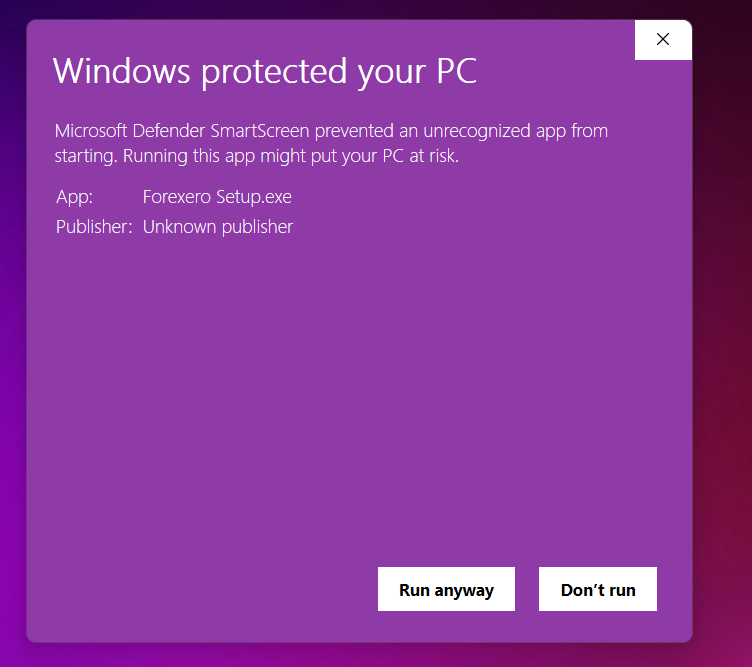
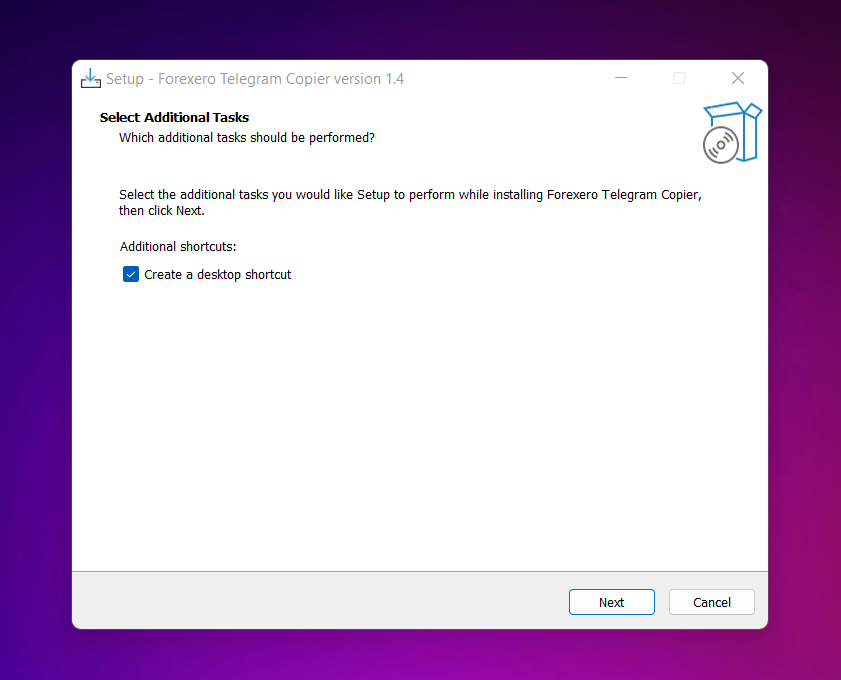
Run Forexero Setup.exe. Because the app is not from the Microsoft Store, Windows SmartScreen may show a blue warning that it "protected your PC". This is normal: click "More info" and then "Run anyway", and continue with the installation. Make sure to create the desktop shortcut when asked, the installer places the EA into your MT4/MT5 automatically.
Connect the app to your Telegram
Launch the desktop shortcut. Enter your Telegram phone number with + and country code (for example +44 for the United Kingdom) and click Connect. Telegram will send a code to your Telegram app, type it in and confirm.
You will then see a list of every channel and group you are subscribed to. Tick only the Forexero VIP channel. The copier can technically copy from more than one channel at a time, so think carefully before you ever enable anything else.
Important: the app is the bridge between Telegram and MetaTrader, so it must be running whenever you want signals copied. It works fine minimized, but if it is closed (and you are not on a VPS), nothing is copied.
Attach the EA in MetaTrader
Open your MetaTrader 4 or 5 platform and follow this exactly:
1. Find the Navigator panel on the left. If you do not see it, press CTRL+N or go to View → Navigator.
2. Click Expert Advisors, right click, and choose Refresh, "Forexero Copier" will appear.
3. Right click Forexero Copier and choose Attach to chart, then click Yes on the confirmation.
4. In the window that opens, make sure to tick "Allow DLL imports" and "Allow Algo Trading", without these the EA cannot trade.
Set your inputs and let it run
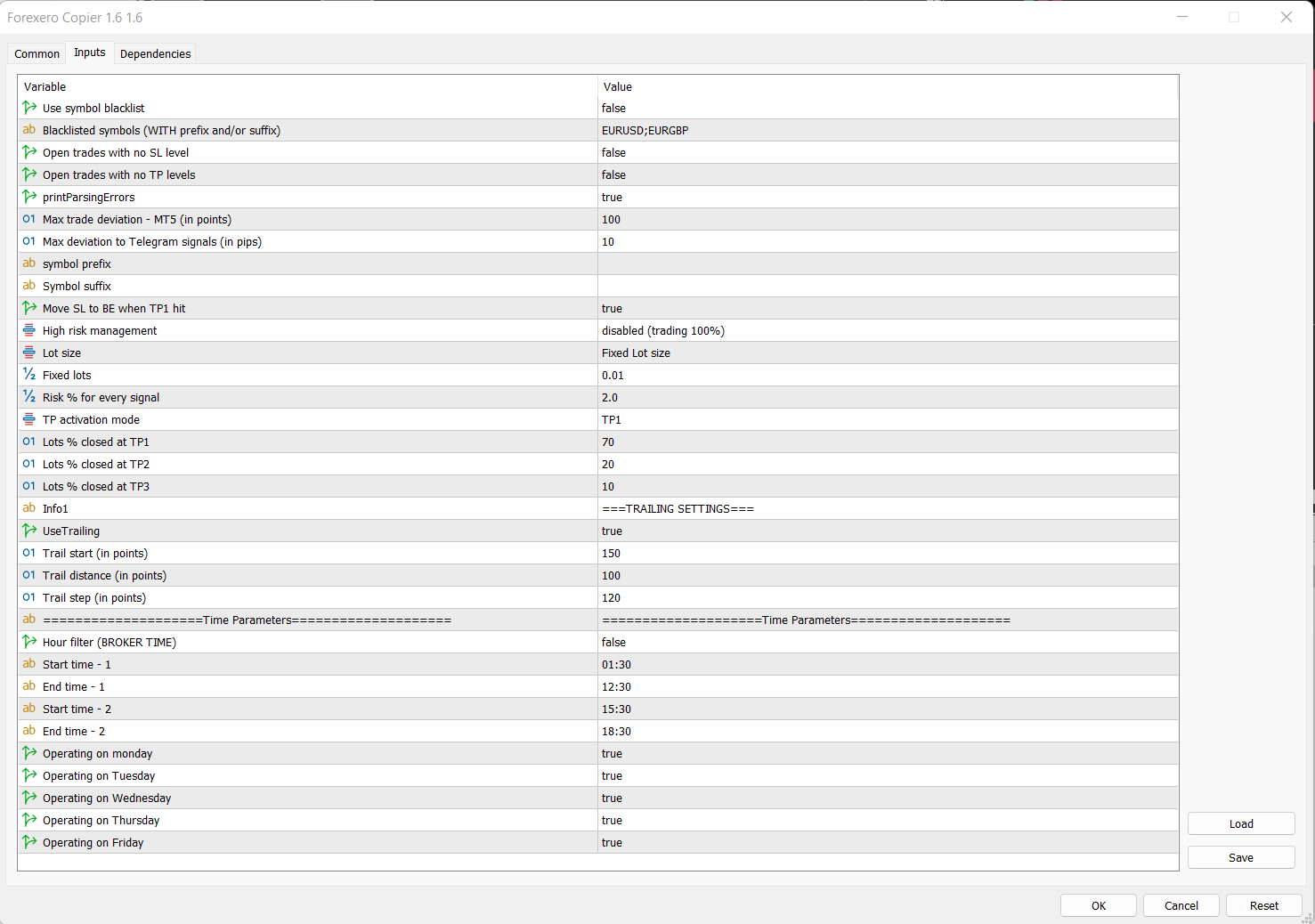
Go to the Inputs tab and adjust the EA to your strategy, lot size, take profit behavior, trailing, every input is explained in plain language in our parameters guide. The shipped defaults are the configuration our team recommends, so you never have to change anything for it to work. Click OK to save, and you can reopen the settings any time with F7.
That is the whole setup. Keep MetaTrader and the copier app running (or use a VPS), and from now on entries, stop losses, take profits, break even moves and partial closes are executed for you, while you stay in full control of sizing and limits at all times.
Next: tune the copier to your style with the parameters guide, from pip adjustments and breakeven modes to trailing stops.
Don't have the desktop copier yet?
It comes free with the Yearly plan, worth £240 a year on its own.